Cookies CSS

Tuesday, April 18, 2017

Windows BOC 3.3 User Guide - Main Screen Layout


1.  The Ribbon - The ribbon is the menu on the top of the window, it should be familiar to Microsoft Office users.  The ribbon contains sections for call control, status, phone books, hunt groups, other, group messaging, quick call, company information and logo, font and color settings, and some data tasks.  The ribbon will size and scale itself as needed depending on where you positions BOC, and how you size it.  The ribbon can be minimized by right clicking on it, or changing the setting in the BOC settings page.

2.  HUD (Heads Up Display) - The HUD shows you information about the current call you have selected.  This is your way of telling BOC which call you intend to hang up, transfer, answer, hold, resume, park etc.  If there is more than one call on your phone, you can change the call selected in the HUD by clicking on the desired call in the My Calls Section (3).  The HUD will show your information in the top left, a caller id picture if assigned in the top right, and the call detail below.  Call detail will include from left to right; the line on which the call is active (7007) in this case, the state of the call (TALK), the duration of the call (38 seconds), the caller id number (12126960100), the caller id name (Greg Wilson), and the call reason (Direct).  The call reason will explain why the call was received, in this case direct means someone called and it rang your phone.  If a call rings back you parked in the parking lot, it will have a reason code of [Reminder].  If the call was transferred to you [Transfer].  If you unparked a call [UnPark].  If the call was the result of a forward from another phone [UnconditionalForward].

3.  My Calls - The My Calls section will give you visibility of the calls on your phone.  You can sort it by clicking on any column.  You can perform drag and drop functions on any call, as well as right click for call control options.  When there are multiple calls available, ensure you select the call you wish to handle.  By default we will handle the first call taken, not necessarily the one you are currently speaking to.

4.  Extension Groups - The Extensions Groups section allows you to select and view the status of a particular group of extensions.  Right click options are available here for modification options.

5.  Location Objects - Location of objects allow you to call or transfer call to an object that is not a line on someone's phone.  Common examples are Hunt Pilots for Sales or Support Departments, or a conference bridge or a conference room phone.  These are defined by your system administrator.

6.  Parking Lot - The parking lot will show information about the parked calls on your system.  If they are parked using BOC they will have more status information than if they are parked with the telephone handset.  In settings you can define after how much time the calls in park can be color coded to yellow, orange, or red.  To get a call out of park, you can double click it.

7.   Search Toolbar  -  The search tool bar is used for finding objects.  It can search globally or in a particular extension group by toggling the Search Global check box.  It will also search for Extensions, My Address Book entries, and Global Address Book entries simultaneously.  You can also enable an option in settings to have it search and filter location objects.  The Predictive Search feature will automatically filter the results based on attributes on the inbound call.  The words Predictive Search will appear in the Search Box.  In the event that there is no match, you can clear the search box with the clear tool and search as needed.


If you wish to work with an external number, to dial, or to transfer a call to, simply type it in the Search Box.  An auto-created entry will appear.  You can right click to dial it.  If you have a live call, you could do a Supervised Transfer to the number.


8.   Extension List - The extensions list will show the extensions in either the selected extension group, or the search you have done.  You can customize the look and feel in the settings screens, change column sizes, sort by clicking on any column, and hover over a graphic for more details.  For more information about what a particular status icon means, you can click the key to the very right edge of the program.

9.  Status Bar - The status bar on the bottom will show you information about the version you are running, what mode it's in, whether your database is unreachable, HA failover has occurred, how many licenses you have and how many are in use, and some basic machine performance details.


  • A. Version number.  This will be green if the version is current.  It will turn yellow if there is an update to be applied the next time you exit the application.
  • B. Phone count.  The specifics of this number are not that important.  The number should be greater than zero, and should not be a multiple of the expected number of phones (2x or 3x would indicate an improperly installed Cisco TSP)
  • C. License count.  This will indicate a total number of licenses as well as the number in use.(50 licenses, and 1 in use in this graphic)
  • D. Connection type.  We offer two connection modes,  Hybrid (green leaf) and Sockets (red socket).  Socket mode is the default connection mode.
  • E. Broken Socket.   This indicates that the client is unable to connect to the BOC TAPI Connector.
  • F. Broken Database Connection.  This indicates that the client is unable to connect to either the primary database, or the HA database (when deployed).


Windows BOC 3.3 User Guide - Table Of Contents


Table of Contents


Monday, April 17, 2017

Windows BOC 3.3 User Guide - Location Objects


Table Of Contents


Location Objects

Location of objects allow you to call or transfer call to an object that is not a line on someone's phone.
These are defined by your system administrator.
You may call or transfer calls to location objects via drag and drop, right click, or double click.


Friday, December 30, 2016

Searching and Extension Groups

Often times there is some confusion on how to best find someone for transferring a call.
Also, some people are unsure how to leverage Extension Groups.

Scrolling around to find someone is, by far, the least efficient manner.
Our searching is very powerful and fast.
Knowing HOW to search is key to success.

Here are the most common call scenarios and how to handle them.
  • Looking for someone by Name (May I talk to Tom Ciscal)
    • Use the green search box for Ciscal.
      You could search for Tom, however, there will likely be more of them.
      Like a Google search, uniqueness speeds and accurizes the search. 

  • Looking for a specific extension (Extension 7092, please)
    • Use the green search box for 7092

  • Looking for someone by title (I need to speak to the Manager)
    • Use the green search box for Manager.  We search across all fields in a search.
    • If the operator already knows the Manager, they may search by name instead.
      *Optional:  If you filled out the Office field in AD, you can leverage that information as well.   

  • Looking for someone by department (I want to talk to someone in Marketing)
    This one may be the most tricky with multiple locations (example Palo Alto).  But it doesn’t have to be.
    • If you’ve create Extension Groups by location DN ranges, it’s quite easy.  This is done on the BOC TAPI Connector Phone System Settings tool.
        • Palo Alto  5000-5999
        • Wichita 6000-6999
    • Choose the Palo Alto EG.  Move the slider bar labelled Search Global to the left.  Use the green search box (now magenta) for Marketing.  This will only display people with the department of Marketing in the Palo Alto location. 

    • Alternatively, rather than using the EG, you could leverage the Office field once again, search for Marketing and sort by Office 


Tuesday, December 20, 2016

Missing e164 Alerting Names

If you are using e164 numbering internally and working with common area phones or other phones that do not have a formal user tied to them in AD or in the End Users table, you will need to change a registry key for us to pull the Alerting Name from the DN properly.

On the BOC TAPI Connector server, change the registry key
HKEY_LOCAL_MACHINE\SOFTWARE\Bridge Communications\BOCServer\E164ASCII to a value of 1.

Tuesday, December 6, 2016

Extension Groups, Search Best Practices in Bridge Operator Console


Bridge Operator Console provides a number of different way to find system users.  For best performance we recommend never displaying more items on the screen that absolutely necessary.  If you chose put 150 users on the screen, your PC will use the resources required to update 150 in real-time despite only being able to see 20 or so at most at one time.

Best Methods for Finding Users

1.  Predictive Transfer

Enabling predictive transfer unleashes the power of 5 machine learning algorithms to present the most likely destination for a given caller.  This feature reduces lookup time far beyond any other method or any other product on the market.

2.  Searching

When a call becomes active the cursor is put in the search box.  A user can then start typing any part of a users first name, last name, title, department or phone number.  The extensions list will quickly filter to match the search.

3.  Extension Group Scrolling (Slowest and not recommended)

Users can select an extension group to find a group of users in a particular department or location for example.  While this method does work, it is much slower than using the combination of search and related people.  The list is limited to 200 results by default.  If you require more you can change the SearchLimit regkey in the program to override it, but this is not a recommended procedure.


You can find more information here.
Searching and Extension Groups

Thursday, July 14, 2016

AXL issues or high CPU utilization on CallManager after applying Windows update to BOC Server

After applying Microsoft KB3161608, you may experience issues with AXL connecting to CallManager.
Additional symptoms may be high CPU spikes on the CUCM providing AXL services to the BOC server.

There seems to be a known issue in Tomcat which is fixed in a newer versions
https://bz.apache.org/bugzilla/show_bug.cgi?id=52511

Currently, we are recommending the removal of KB3161608 followed by applying any other remaining Microsoft updates.


UPDATE:  KB3172605 appears to replace KB3161608 and has the same issues.


Thursday, June 9, 2016

Manual License Update

If your server is blocked from accessing the internet to update its license there is a manual process to complete it.
Go to the License Update Generator website.  You will need to enter your Product License key and answer the Captcha.
A SQL script will be generated in red at the bottom of the page.
Copy this script to Notepad.

Click here for License Update Generator


Open the BOC Phone System Settings tool.
Choose the Utilities tab -> Database Queries -> Run SQL Query


Paste the SQL Script as shown, and the click Execute SQL Query


After a few moments, the license should reflect correctly in the Phone System Settings tool in the lower right corner.


Wednesday, June 8, 2016

Configure BLOC for Exchange on o365

If you are using Outlook and Exchange as part of Office 365 (o365), you may need to manually configure the Exchange Connection in the settings.
Follow the Exchange Connecting Settings example below.

1.  Uncheck Use Currently Logged In User
     
Leave the EWS Domain empty
2.  Uncheck Use Autodiscover URL
     The EWS URL should be https://outlook.office365.com/EWS/Exchange.asmx
3.  Fill in the EWS User and EWS Password with your o365 email credentials.


Sunday, May 1, 2016

Bridge Operator Console for Cisco - Connector Specs

BOC Connector running in Stand Alone - Recommended Hardware Specs

If you have a single operator install you may choose to run the connector software on the same machine as the client.  If this is the case you may use the recommended hardware specs below as a recommendation, although it may vary given the numbers of phones, activity, and other concurrently running applications on that machine.
Intel i5 Quad Core CPU
4GB of Memory
100GB of Free HD Space (C: Drive)


BOC Connector running on a Server - Recommended Hardware Specs

The BOC Connector is a Windows service that connects to your phone system, and a MS SQL Database.  Here are the suggested build outs.   The roles change based on whether or not you deploy SQL (may need more memory or processor) on box or whether you run the mobile or WIndows client in socket mode.  Additionally, only CUCM 8.5 with update 1 and later have a TSP Driver that supports 64 Bit.  And to compound that, the 32 Bit TSP from Cisco is not supported on a 64 Bit platform (ie, doesn’t work).  So you cannot build out a 64Bit machine in anticipation of a 8.5U1 (or later) rollout and have it work on a pre-8.5U1 CUCM.

Suggested Minimum Server Specifications

Any Windows version supported by the CUCM TSP version (32 or 64 if TAPI Supports it)
Number of Lines
SQL Server
vCPUs
Memory
Storage
NIC
Less than 500
On Box
2
2 GB
100 GB C: Thin
Gigabit min.
Less than 500
Off Box
2
1.5 GB
60 GB C: Thin
Gigabit min
500 - 2500
On Box
2
2 GB
100 GB C: Thin
Gigabit min.
500 - 2500
Off Box
2
2 GB
60 GB C: Thin
Gigabit min.
More than 2500
On Box
2+
2 GB
100 GB C: Thin
Gigabit min.
More than 2500
Off Box
2+
2 GB
60 GB C: Thin
Gigabit min.
* Servers may need additional resources with a high number of users running in socket mode, or in extremely high call volume situations.
Server can be either Physical or Virtual, although we prefer virtual, because it answer all of the high availability questions.  For the OS, you can run all of the latest Microsoft recommended service packs and hotfixes.  If you decide to install SQL Express on the box, there may be some MS required support software that needs to be installed.  Generally speaking, we are not very fussy on what is there as long as it is reasonably current.

Modes of Operation

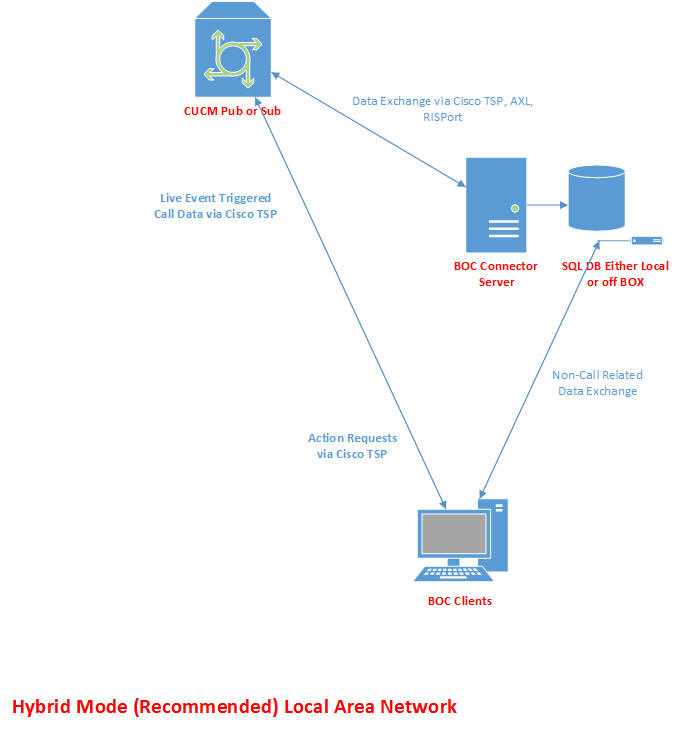
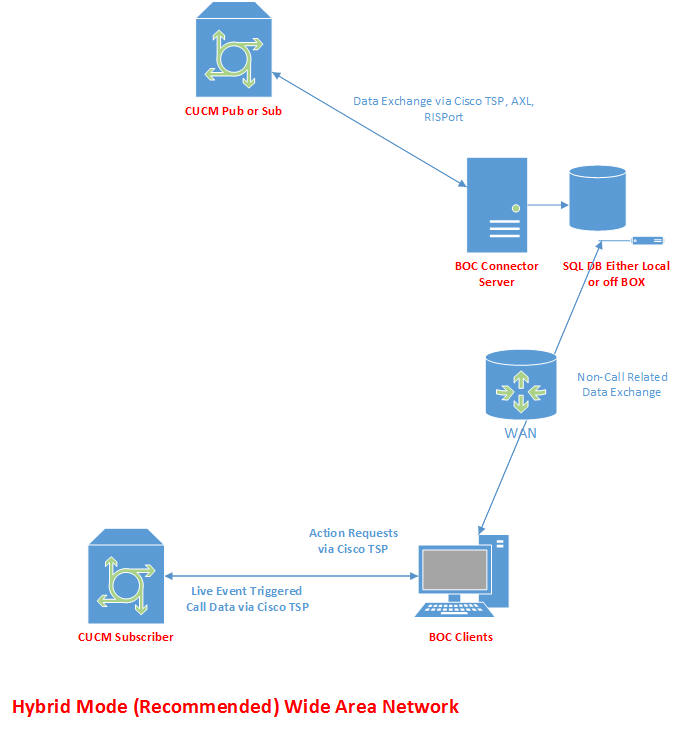
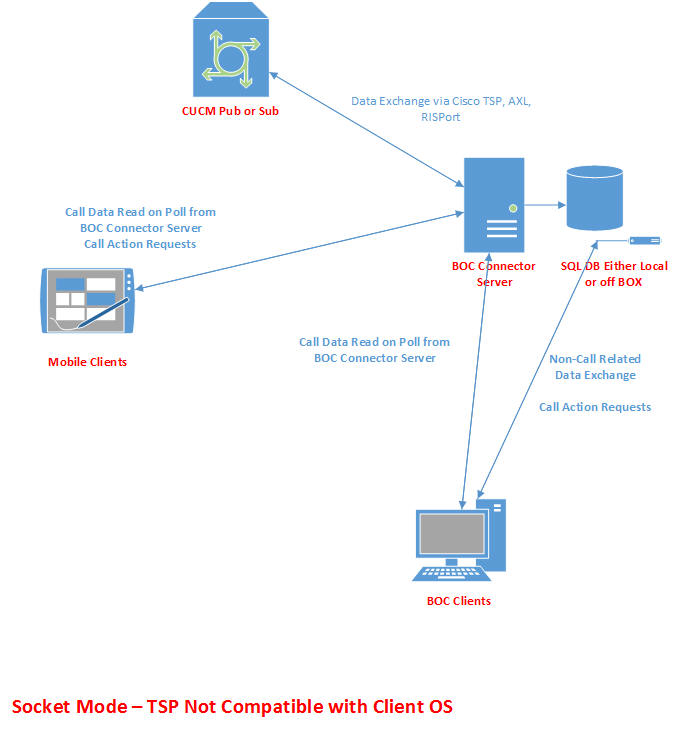
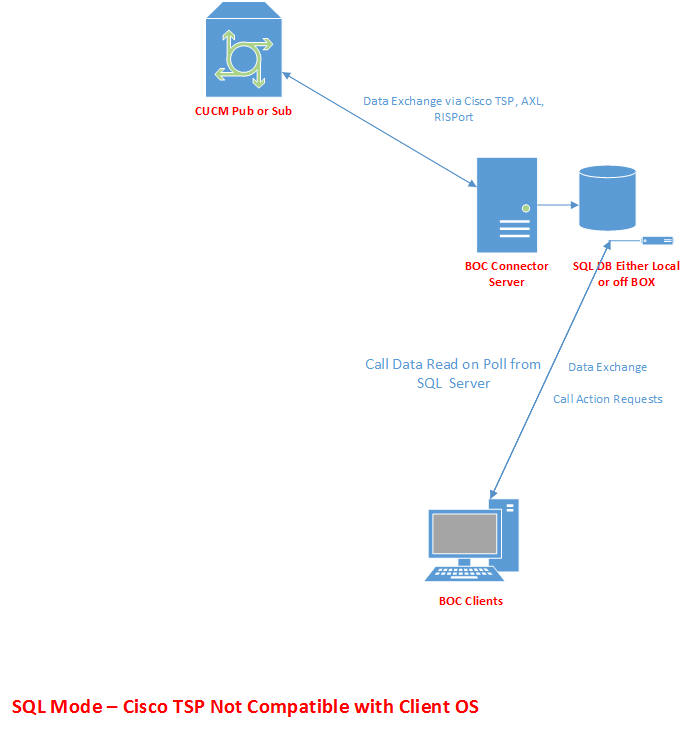
There are 3 modes in which BOC clients can function, Hybrid Mode, Socket Mode, and SQL Mode.  Whenever possible Hybrid Mode is the recommended method for deployment for Windows based PC devices.  All mobile clients will always communicate via Socket Mode, due to no available TSP driver for those platforms.  If you operate a mobile device outside your network, a vpn connection is recommended to ensure secure data transmission.

Bridge Operator Console for Cisco Client Specs

Recommended BOC Client Specs

Bridge Operator Console 3.x for Windows

Win Vista, Win 7, Win 8
.Net 4.5
Quad Core CPU or Better
2GB of Ram or Better

Bridge Operator 2.x for Windows

Win XP SP3, Win Vista, Win 7, Win 8
.Net 3.5 SP1

Dual Core (non Centrino) CPU or Better
2GB of Ram or Better

Bridge Operator Console 1.x for Apple Ipad


IOS 5.0 or Better

Bridge Operator Console 2.x for Android


Android 2.3 or Better

Bridge Communications provides only the recommended hardware specifications, and not any minimums.  The minimum requirements for an organization that has 100 phones, would be dramatically different from one that has 25,000.  In most cases any fairly modern desktop PC will provide adequate power to run our application.   We recommend you always get a 60 day demo key and try the product on your existing hardware before purchasing.

Saturday, April 30, 2016

Supported Operating Systems - Bridge Operator Console for Windows 2.x/3.x for Cisco


Supported Operating Systems - Bridge Operator Console for Windows 2.x/3.x

Below is a matrix of supported client operating systems based on the version of CUCM.
Bridge Operator Console relies on the Cisco TSP driver for it's real time call information and control.
Prior to CUCM 8.5 U1 there was no support for this driver in Windows 7 or any 64 bit OS.  With CUCM 8.5 U1 and
beyond BOC is supported for production in any Windows 7 or 64 bit OS environment.
Testing before CUCM Upgrade
BOC offers a SQL based and Socket based mode when the TSP isn't available, to allow "proof of concept" type testing
where an organization would like to test the features before a CUCM upgrade.  Performance will not be as true as
if the TSP were installed, but should be sufficient on a small scale to determine functionality in your environment.
*Connection speeds and geography can slow performance when the TSP is not available for your OS.

Green = Supported in a Production Environment, Yellow = Supported for Proof of Concept before Upgrading CUCM, Red = Unsupported by Cisco.

TSP Availability Windows XP SP2 32bit Windows XP SP2 64bit Windows Vista 32bit Windows Vista 64bit Windows 7 32bit Windows 7 64bit Windows 8 32bit Windows 8 64bit Windows 8.1 Windows 10
CUCM 6.x
CUCM 7.x
CUCM 8.0
CUCM 8.5
CUCM 8.5 U1
CUCM 8.6
CUCM 9.0
CUCM 9.1
CUCM 10.0
CUCM 10.5
CUCM 11.0
CUCM 11.5


Server Versions Supported

TSP Availability Windows 2008 32 bit Windows 2008 and R2 64 bit Windows 2012 and R2 64 Bit
CUCM 6.x
CUCM 7.x
CUCM 8.0
CUCM 8.5
CUCM 8.5 U1
CUCM 8.6
CUCM 9.0
CUCM 9.1
CUCM 10.0
CUCM 10.5
CUCM 11.0
CUCM 11.5